AI indexing for Confluence and your files
Ovyka Knowledge Codex
Turn Confluence pages, tables, images and your PDF and Office files into one knowledge base your teams can question. Every answer links back to its source, in OKC, your portals or your AI assistants.
- Confluence + files
- Image vision
- Cited answers
- API · MCP
Question“When should the ticket be reopened, and who takes over?”
- Searching Confluence and files
- Reading the image description
- Checking the source and its version
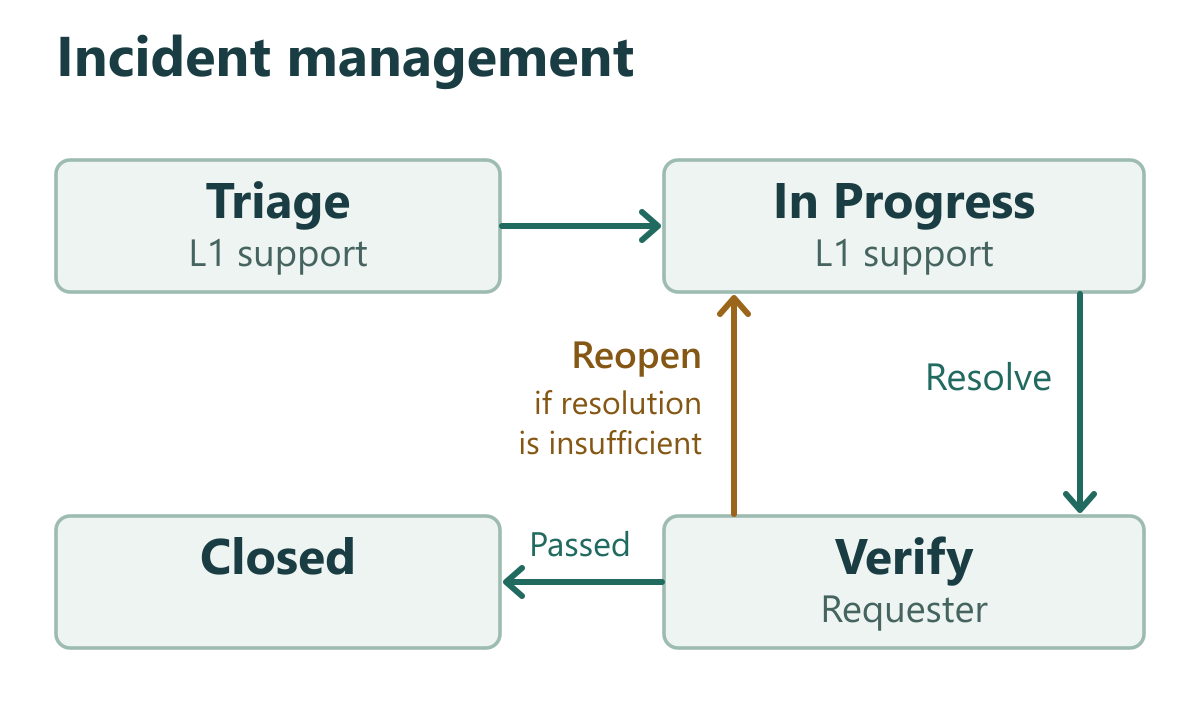
If the requester’s verification finds the resolution insufficient, “Reopen” sends the ticket back to “In Progress”, with L1 support.1
 1 Workflows JiraConfluence · embedded image, described by AI
Simplified example: the page is titled “Workflows Jira”; the rule only exists inside the image.
How OKC thinks
A company memory that understands your content.
Your sources feed an index that reads the text and looks at the images. Every question draws cited passages from it, delivered where your teams already work.
Sources
Confluence
Company wiki
Network files
Authorised shares
OKC cognitive index
Ovyka Knowledge Codex
- Keywords + meaning
- Image vision
- Sources & versions
Where answers go
Local AI
In-house chat, on-premises
Cloud AI
Remote assistants & models
Rovo
Atlassian agents · integration option
OKC search
Web interface, questions
Your applications
Portals, business tools
- 01
Read
Pages, tables, attachments and files within the authorised scope.
- 02
Understand
Vision describes each image: steps, roles, arrows, labels.
- 03
Index
Keywords and meaning, tied to source, location and version.
- 04
Answer
Checked passages and links to the original, in the tool you choose.
Simplified business example
An image becomes knowledge.
The page title stays generic. The business rule only exists inside the diagram. OKC reads it, describes it and makes it findable.
- 01
The Confluence page
Team page · Workflows Jira
- 02
The AI description joins the index
The image represents an incident management workflow. L1 support triages the ticket, then handles it in “In Progress”. The “Resolve” transition leads to “Verify”, assigned to the requester. A successful check leads to “Closed”. If the resolution is insufficient, “Reopen” sends the ticket back to “In Progress”, with L1 support.
- Workflow
- Process
- Incident management
- L1 support
- Requester
- Verify
- If resolution is insufficient
- Reopen
Description checked against an actual model analysis of this image.
- 03
A colleague later asks…
“Find my team’s incident management process.”
Confluence page foundWorkflows Jira
“When should the ticket be reopened, and who takes over?”
It returns to L1 support in “In Progress” when the requester finds the resolution insufficient. The answer relies on the condition and return arrow described from the image.
From a search result to the full procedure
A procedure may span a Confluence page, a table, a diagram and a PDF. Ovyka Knowledge Codex (OKC) lets people search the connected content, ask a question and find the page or file that supports the answer. Your teams can then keep reading in the original documentation.
Search
Enter a part number, a label from a screen or a question in your own words. Review passages ranked by relevance and narrow the search by space, text, table or image.
Ask
Ask what you would ask a colleague. The answer cites the passages that support it. Open the relevant Confluence page to read the conditions, exceptions and full procedure.
Explore
Open a result in OKC to browse its sections, tables and visuals in context. Follow the original link to continue reading in Confluence.
Pages, images and documents in one search
- Confluence
- Published pages, blog posts and live docs, including sections and tables. Choose the authorised spaces, up to all published content available to the reading account.
- Images and attachments
- Interface screenshots, business diagrams and images with or without text. Analysis describes what they show and keeps the source page link. Text from supported document attachments is also searchable, with its source page.
- PDFs and other files
- OKC also indexes PDFs, Word, Excel, PowerPoint and text files in connected file sources and supported Confluence attachments. Search can combine their passages with page results. Ovyka agrees the formats, locations and attachment ingestion path with your team.
You get a common entry point into company knowledge. Each result retains its origin, whether it leads to a Confluence procedure, an image or a document passage.
What becomes searchable in an image
Optical character recognition (OCR) reads visible characters. OKC also analyses the pixels and records the objects, their positions and the visible relationships in words. That AI description is indexed with the surrounding page context and is available for later searches.
For a readable workflow, analysis can capture each step, the named teams, arrow directions, transitions and their conditions. In the “Workflows Jira” example, “incident management” and the reopening rule appear inside the image. Describing them makes it possible to find the page and answer a question about that rule while the page title remains generic.
A screenshot with text
An admin screen reads “Pending”. Its visual description records that an hourglass appears on the partner account row. A colleague can search for the label or describe the indicator to find the procedure.
A diagram with no text
An architecture drawing can show an application connected to two storage systems, including a fallback route. The description records the visible components and relationships. The page context makes it possible to search for that architecture in the team’s own words.
Details and terms from the analysis enrich the search text. Supported embedded and attached images stay linked to their page and version. The coverage report shows which visuals have descriptions and which still need processing.
What OKC adds for teams using Rovo
Rovo Chat can analyse an image supplied in a conversation. Native processing of images already embedded in Confluence pages remains unavailable to Rovo Chat and its agents according to Atlassian’s open feature request, checked on 6 November 2026. Read Atlassian request ROVO-388.
OKC analyses the attachment during indexing. When someone later describes what they are looking for, the stored description can lead them back to the visual and its source page. They can ask without having a copy of the file. Ovyka can also integrate this index with a Rovo agent via MCP.
How Ovyka implements OKC with your team
Ovyka develops the software and delivers the integration. Our Atlassian and AI specialists work with the people who maintain your Confluence spaces and those who will use the answers.
- Define the scope.
We map your spaces, attachment formats and reading permissions with you. You get an agreed list of content to process and the audiences allowed to use it.
- Index and verify.
We configure ingestion and visual analysis. Your subject experts ask their own questions, open the retrieved images and check details on the original pages. You get a coverage report and a list of cases to revisit.
- Connect your tools and hand over.
We connect the chosen portal or assistant, configure citations and tone, and show your administrators how to monitor updates and retry processing.
Your knowledge in your organisation’s voice
Ovyka works with you to configure the instructions used by the assistant that calls the index. You choose the permitted sources, perspective, brand vocabulary, length and citation format. Consider the same account access procedure in three settings.
- Internal knowledge base
- “Verify the invitation email address. Point the user to Resend link. Attach the procedure to the ticket.” The technician gets a checklist and an internal Confluence link.
- B2B portal
- “To renew your access, open the partner portal and enter the address that received the invitation. The Portal access guide explains the remaining steps.” The partner gets a link to the guide they have permission to read.
- B2C support
- “Has your link expired? Enter your email address on the sign-in page and choose Resend link.” The customer can follow a link to the public help centre.
Connect the index to your AI assistants
Use the OKC web interface or let your existing chat application query federated search. The API and MCP (Model Context Protocol) tools return passages from Confluence or connected files, image descriptions and their sources. Several compatible assistants can use the same tools with their own models. A skill tells them when to search, how to cite evidence and how to format the reply.
Ovyka brings Atlassian expertise, AI engineering and agent integration to that work. An in-house chat, an on-premises assistant, a Rovo agent and an application built on the OpenAI API each have a different integration path. Explore the RAG architecture and connection options.
Product questions
Which Confluence content does OKC cover?
OKC reads published pages, blog posts and live docs within authorised Confluence Cloud spaces. It indexes text, tables and supported visuals. Readers also process PDFs and Word, Excel and PowerPoint documents from connected file sources and supported Confluence attachments. Each passage retains its file and location. Unextracted formats and errors remain visible in coverage reporting. Coverage and formats are checked before going live.
What happens when a procedure changes?
Incremental synchronisation tracks changes and versions. Before returning an answer, OKC rechecks the sources it used. It tells the reader when the available passages are insufficient.
Can we use OKC for customer-facing communication?
Yes, as part of an integration that defines which content can be shared and what the reader may access. Before opening a shared portal, Ovyka checks permissions for each role and verifies that readers can open the links they receive.
See OKC on a question your team handles
Tell us who needs the information, which Confluence spaces hold it and where they start their search. We will show you the path from question to source page and discuss deployment options for your organisation.
Request a guided demo